
Use this guide when customers showed interest in an unavailable product and you want Hellotext to notify them automatically when that product or variant is available again.
Back-in-Stock Pounce is an autonomous conversion playbook. It connects inventory signals with the customer profiles that showed interest, checks that the opportunity still makes sense, and sends a relevant alert to those people without your team manually checking lists, matching stock, or building campaigns.
Its value is operational simplicity: Hellotext communicates the restock to customers with interest signals for that product, with the context they need to come back and buy. That interest can come from a wishlist, a search for the specific product recorded as interest, a product view, or a cart; it does not always mean the customer explicitly requested an alert.
It is not a journey route or a broad restock campaign. It is a prebuilt playbook with its own configuration.
This illustrative example shows how an alert from the fictional store Luma could appear. It helps the reader check the product and its availability; it does not imply reserved stock or that a notification was sent.

What Back-in-Stock Pounce does
Back-in-Stock Pounce helps convert demand that was blocked by inventory.
It can:
- Start when Hellotext receives a back-in-stock or availability signal for a product or variant.
- Use supported interest signals for the same product, such as a wishlist, cart, product view, or recorded inferred interest. If a form collects restock requests, verify how those requests become supported signals in Hellotext.
- Send a notification with product context and a product link when the customer can be reached.
- Check whether the product or variant is still available before the message goes out.
- Stop when the product is unavailable again, the customer already bought, the customer is not reachable, or no more follow-up is needed.
- Let your team review and edit the playbook configuration before enabling it.
The exact configuration can vary by account, connected store, and rollout status. Review the generated playbook before enabling it instead of assuming every business has the same options.
When to use it
Use Back-in-Stock Pounce when the customer wanted a specific product but inventory blocked the purchase.
It is a good fit when:
- Customers join a waitlist or ask to be notified when an item returns.
- A specific size, color, variant, or SKU was unavailable and becomes sellable again.
- Your store or data source can send reliable product or variant stock updates.
- Product links, images, prices, and availability are accurate enough to send quickly.
- You want a direct restock alert, not a broader merchandising message.
Use a campaign instead when you want to announce a restock to a selected audience once, even if those customers did not ask for that product.
Use Browse Recovery when the customer viewed an available product but did not buy. Use AI Cart Saver or Cart Saver route when the customer added the product to cart or checkout. Use Smart Recommender when the customer needs help choosing alternatives or related products.
What it needs before launch
Before enabling the playbook, confirm the inventory and customer signals it depends on.
Check that:
- Your store, ERP, catalog, or inventory source sends stock or availability changes to Hellotext.
- Product and variant IDs match the product-interest, waitlist, or notify-me signal.
- Out-of-stock and back-in-stock states are reliable at the level you plan to message about.
- Product names, images, prices, stock, and product links are current.
- The customer profiles with interest signals are subscribed, identifiable, and reachable.
- The channel is connected and ready.
- Customers have consent and are eligible for the channel.
- Purchase or order signals are available if the playbook should avoid messaging customers who already bought.
For setup validation, use Verify your data and signals after setup. For custom tracking, use Tracking events.
After enabling the playbook, review the activity of test customer profiles, messages, and available purchase signals. Back-in-Stock Pounce does not yet have a dedicated report panel; do not assume all these metrics will appear together in one report.
How to configure it
Go to Playbooks, click Explore playbooks, and choose Back-in-Stock Pounce.
Review the playbook cards before enabling it:
- Outgoing channels: use automatic selection or choose the allowed channels. This setting does not connect a channel or replace customer consent.
- Audience: include or exclude the customer groups that can participate.
- Discounts: choose whether the playbook can use store offers, AI incentives, a configured coupon, or no discount strategy.
- Tone: select up to three tones to guide the voice of the message.
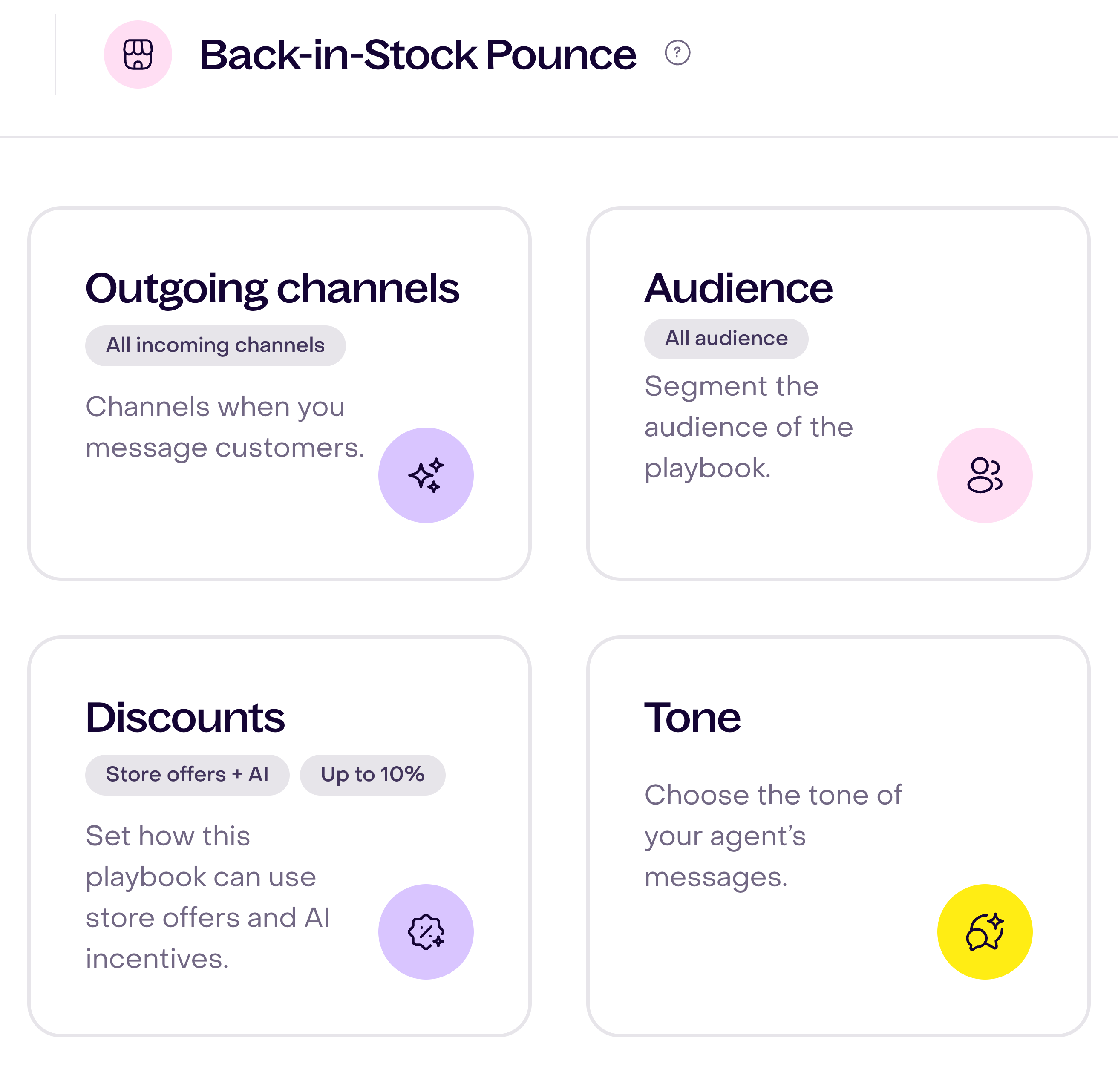
To review the available groups, open Audience and click Add audiences.

In Discounts, the combined strategy allows store offers and AI incentives within your selected limit. You can also use existing store offers only, AI incentives only, or a coupon created in Hellotext. No discount strategy prevents incentives from being offered.

For a strategy that uses store offers, open the Configure store promotions settings button to review imported promotions. The panel shows their status and dates; store schedules still apply.

In Tone, you can select up to three options to guide the voice of the message.

Review the result in Playground: check the product name and image, the message, and its action to the product page. A preview helps you review the content; it does not confirm a send or reserve inventory.

Hellotext handles the stock trigger, customer-interest matching, send timing, availability recheck, and purchase check automatically. Back-in-Stock Pounce does not require a prompt, intents, journey steps, waits, or exit conditions.
How it works with nearby playbooks
Use the customer signal to decide the owner.
| Customer moment | Better fit |
|---|---|
| Customer asked to be notified about an unavailable item | Back-in-Stock Pounce |
| Customer viewed an available product but did not add to cart | Browse Recovery |
| Customer added products to cart or checkout and left | AI Cart Saver or Cart Saver route |
| Customer needs help choosing a product or alternative | Smart Recommender |
| Business wants to announce a restock to a selected audience once | Campaign |
Back-in-Stock Pounce can run alongside browse and cart recovery when the ownership is clear. Back-in-stock handles the unavailable-item moment; browse and cart recovery handle available products that the customer did not buy.
How to test it
Test with a small, realistic case before enabling it broadly.
Use a test customer profile that has channel consent, then:
- Create or identify a product or variant that is unavailable.
- Record a supported interest signal for that test profile and product, such as adding it to a wishlist. If you use a restock-request form, confirm which signal its integration records.
- When the signal is an event, review the recorded activity to confirm it belongs to the right customer profile and product. Inferred interest does not always have a visible event in that activity.
- Send or simulate the stock or availability update that makes the item sellable again.
- Confirm the playbook detects that update and creates an eligible back-in-stock opportunity.
- Confirm the message uses the right product, variant, image, price, and link.
- Confirm the playbook does not send if the product becomes unavailable again.
- Confirm the playbook does not send if the test customer already bought the product.
- Send a reply and confirm it reaches the Inbox if your team should handle replies.
- Review sent, skipped, failed, clicked, and converted examples after launch.
To check recorded signals, review the profile activity and confirm the product and date. Interest and restock events alone do not establish that a message was sent.

If tracking is custom, confirm that product identifiers, variant identifiers, stock status, timestamps, and customer identifiers match what Hellotext expects.
Why it may not send
Enabling the playbook does not guarantee every restock produces a message.
The playbook may not send when:
- The stock or availability signal did not arrive.
- A supported interest signal for that product is missing or falls outside the window the playbook evaluates.
- The product or variant IDs do not match across the stock update and customer signal.
- The product is still unavailable, hidden, archived, missing a price, or missing a usable link.
- The customer already bought the item.
- The profile cannot be reached in the selected channel.
- The customer unsubscribed, opted out, or is otherwise not eligible.
- The channel, sender, WhatsApp template, or message format is not ready.
- Quiet hours, frequency limits, or another send rule delays or blocks the message.
- Another playbook or campaign is already handling the same customer moment.
For a step-by-step diagnosis, use Troubleshoot a playbook that did not trigger or send.
What to review after launch
During the first days, review:
- Which products or variants created back-in-stock entries.
- How many customer profiles entered the playbook.
- How many messages were sent, skipped, failed, clicked, or converted.
- Whether products were still available when customers clicked.
- Whether product links, images, prices, and variants were correct.
- Replies, opt-outs, and support questions.
- Purchases, attributed revenue, and missed opportunities.
- Whether the playbook overlaps with campaigns, Browse Recovery, cart recovery, or Smart Recommender.
Tune one thing at a time among the playbook cards: outgoing channels, audience, discounts, or tone. Review the preview after your changes.
Related guides
- Playbook library by mission
- Choose your first playbook
- How to enable a playbook
- How to customize a playbook safely
- What are signals?
- How Hellotext decides whether a playbook can send
- Troubleshoot a playbook that did not trigger or send
- Verify your data and signals after setup
- Tracking events
- Connect Shopify
- Connect your catalog to WhatsApp
- Price-Drop Pouncer playbook
- Browse Recovery playbook
- AI Cart Saver playbook
- Cart Saver route
- Smart Recommender playbook
- Campaigns overview
- Playbook reporting