
Use a campaign when you want to send a planned, one-time message to a selected audience. You choose the channels, audience, message, and delivery time; Hellotext determines which eligible customer profiles can actually be reached through those channels.
This illustrative WhatsApp example from the fictional store Luma follows the campaign preview for the Club’s new arrivals. It does not represent a sent message.
Before you start
Make sure you have:
- An approved SMS sender, a ready WhatsApp number, or, for an Email-only campaign, channel access and a verified, active email sender.
- Customer profiles with consent for the channel you plan to use.
- A clear campaign goal and call to action.
- Any lists, segments, tracked links, coupons, or media you need.
- A payment method or balance when required by your account and channels.
Keep reading: Who can I message?.
1. Start the campaign and choose how it will be sent
- Open Campaigns.
- Select New Campaign.
- Choose one of the available delivery options:
- WhatsApp and SMS: tries WhatsApp first and uses SMS when WhatsApp is not available for an eligible customer.
- WhatsApp only: sends only through WhatsApp.
- SMS only: sends only through SMS.
- Email only: sends only through Email; it requires channel access and a verified, active sender.
The creator shows these options, but selecting one does not by itself enable sending: the business needs access and a ready sender for the chosen channel. The Estimated target updates to show how many customer profiles may be reachable through the selected delivery option.

Select Next to continue. Give the campaign a clear internal name in the header so teammates can recognize it later in Draft, Scheduled, Delivered, and reporting views.
2. Choose who will receive it
The audience step starts with All Audience. You can keep it when every eligible customer profile should be considered, or replace it with a more focused selection.
You can include or exclude:
- Lists.
- Segments.
- Audiences from previously scheduled or delivered campaigns.
Use Select Audience to search for and add groups. To include specific groups, first remove All Audience with its remove button. If you keep All Audience, groups you add are excluded from that audience.
With a specific selection, select an added group’s name to switch between including and excluding it. Excluded groups show Exclude beside their name.

Hellotext deduplicates overlapping groups and updates the estimated target automatically. The count considers the selected channels, subscription state, contactability, inclusions, and exclusions, so it can be smaller than the total size of the selected lists or segments. Wait for it to finish updating after changing the selection.
Use the settings control beside Estimated target when you want to limit the campaign to a maximum number of eligible customers from the selected audience. This limit does not make an ineligible profile contactable.
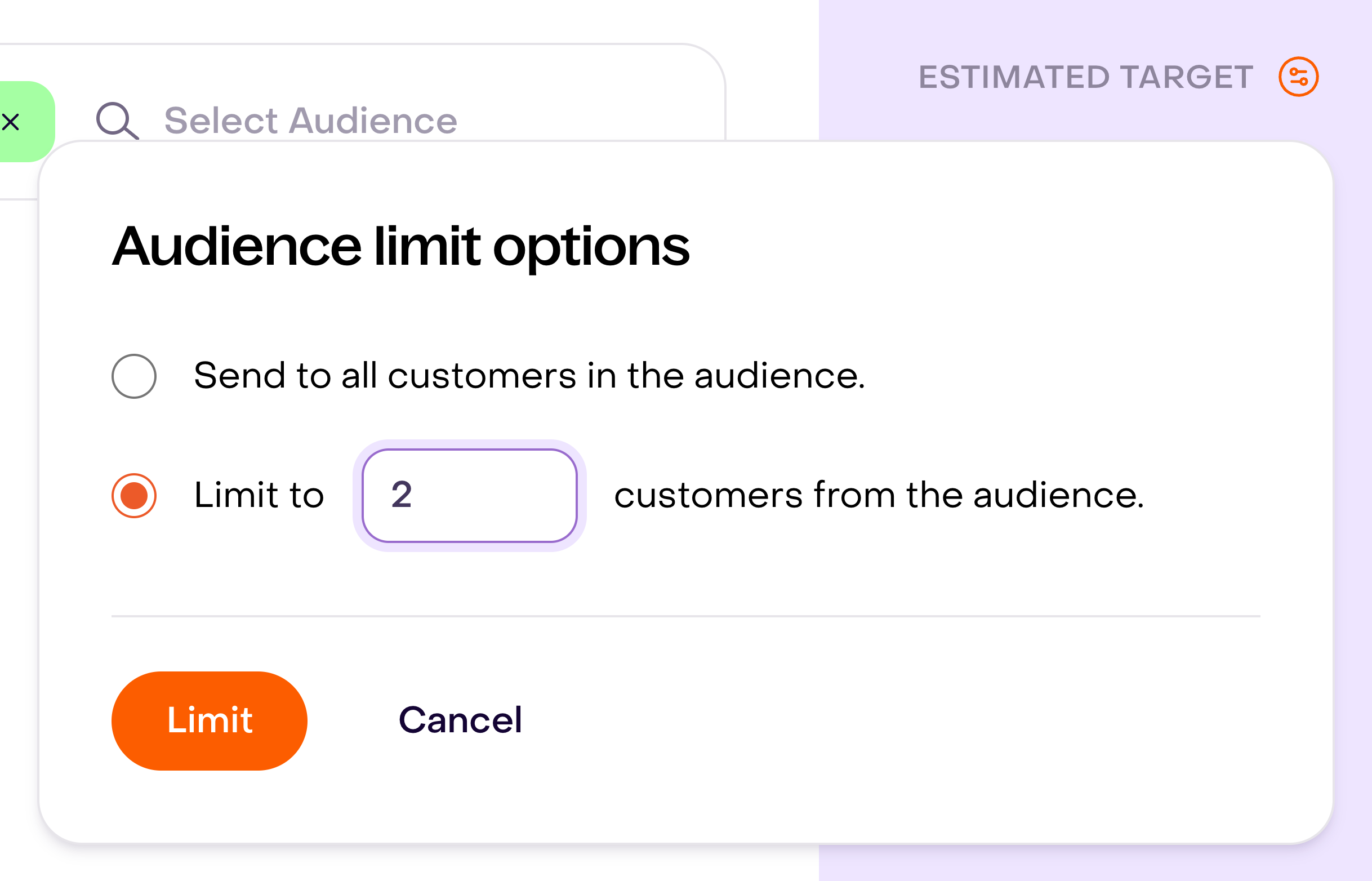
The count at this step shows the eligible audience before applying the limit. Choose a maximum that does not exceed that count, and check the limited total at confirmation.
Keep reading: Lists vs. segments.
3. Compose the message
Write one focused message with a clear next action. The editor shows a channel preview while you compose.

Available tools depend on the delivery option. A campaign can include:
- Formatted text supported by the selected channel.
- A tracked link.
- Personalization tags from customer profile properties.
- A coupon.
- A sending channel or sender.
- WhatsApp content such as an attachment, location, footer, or buttons when supported.
When WhatsApp is part of the campaign, the message is also prepared as a WhatsApp template. New or changed WhatsApp template content may need Meta approval before it can be delivered.
Keep reading: Message editor overview.
Add tracked links
Use the editor’s link tool instead of pasting a long destination URL. Hellotext creates a short hello.link URL, records eligible clicks, and connects the visit with later tracked activity.
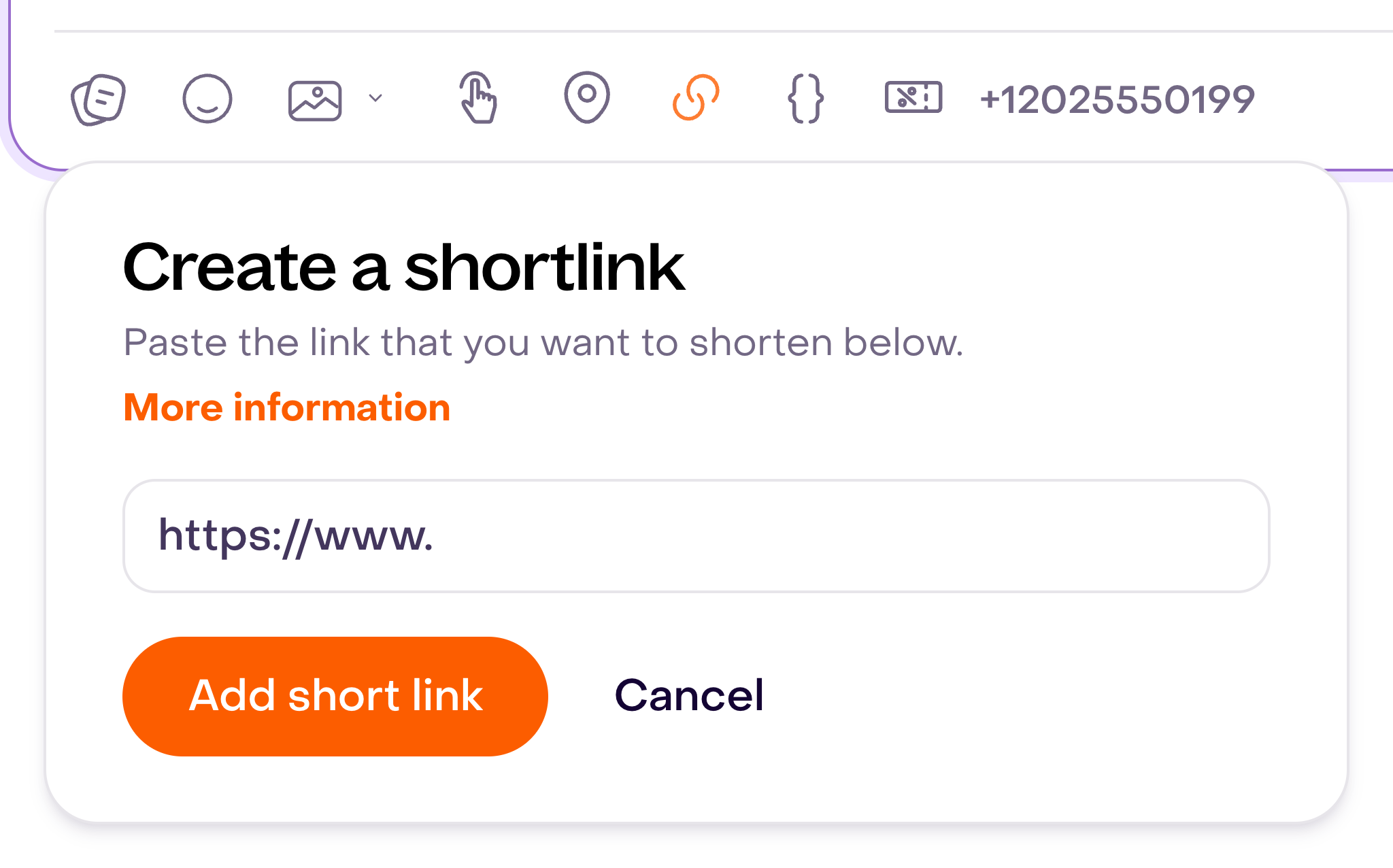
In Create a shortlink, paste the destination URL and select Add short link.
A tracked click can contribute active evidence for campaign attribution, but it is not the only evidence Hellotext evaluates.
Keep reading: Tracked links.
Add personalization tags
Tags insert customer profile properties into the delivered message. Use a fallback when the property may be missing, for example {name|customer}.
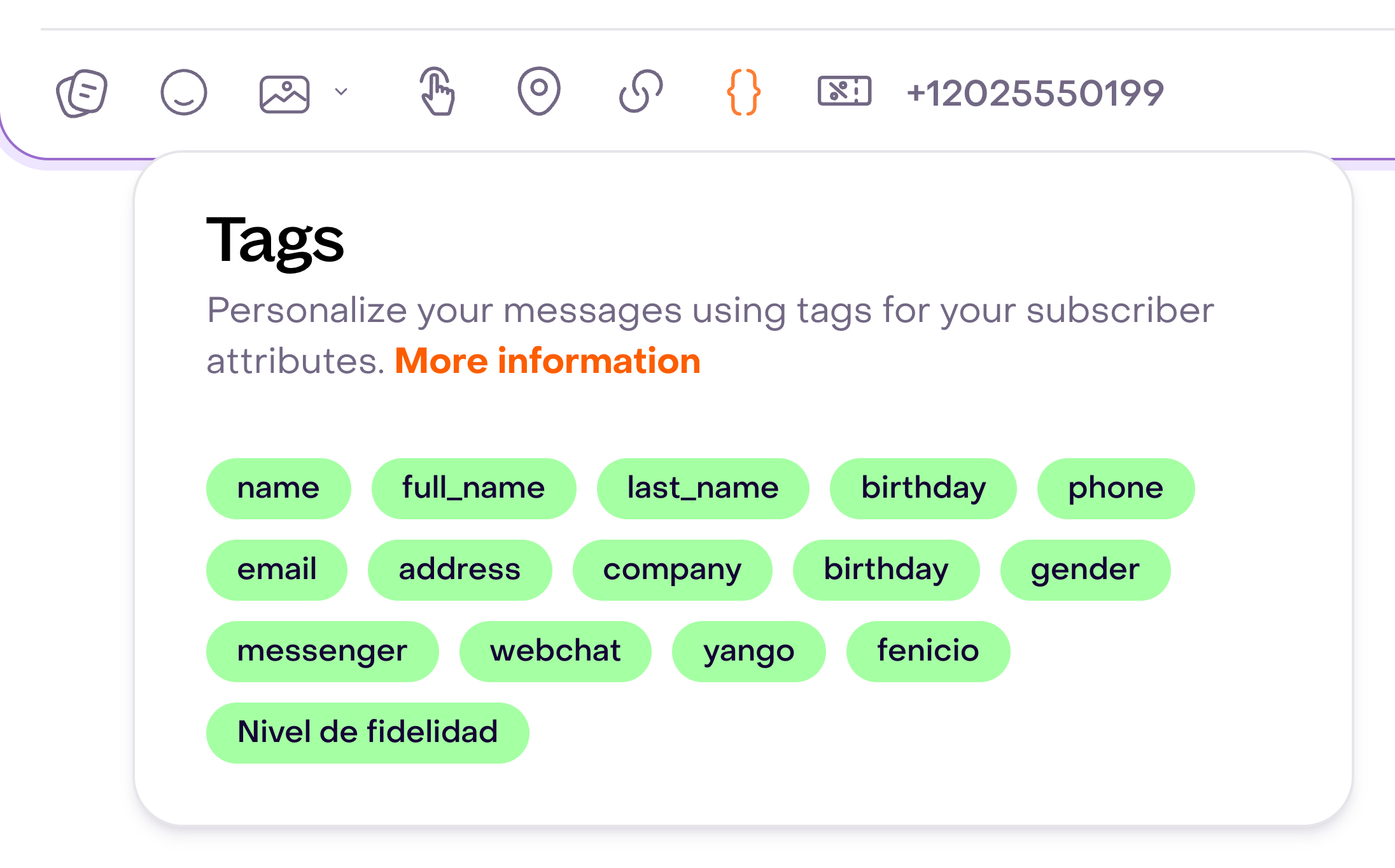
Open Tags with the braces button and select the property you want to insert, such as name.
Check the preview carefully when using tags. The fallback should produce a natural sentence for customer profiles without that value.
Keep reading: Personalization tags.
Add a coupon
Use the coupon tool to reference a coupon already available in Hellotext. This keeps the coupon connected to the campaign and its results instead of treating a manually typed code as plain text.

Confirm that the coupon rules, expiration, and eligible products match the selected audience before sending.
4. Preview and send a test
Use the preview to check the message in every selected channel. Review:
- The first line and call to action.
- Personalization and fallback values.
- Tracked-link destinations.
- Coupon text and validity.
- WhatsApp attachments, buttons, footer, or location.
- SMS length and the message-part estimate shown by the editor.

Send a test to the appropriate destination before continuing: a number you control for SMS or WhatsApp, or your own address for an Email-only campaign. An SMS test can be delivered directly. A WhatsApp test with new template content can remain scheduled until Meta approves that template.

For a WhatsApp test, open Send me a test message. In Send message to this number, choose the country and enter a number you control.
A test lets you review the message at the chosen number or address. It does not prove that every customer profile in the final audience is eligible.
5. Choose when it will be sent
Choose one of these options:
- Send now: starts the approval and delivery process immediately.
- Send later: selects a future date and time.
Hellotext applies the communication windows required for the destination country and the business’s night-hour settings. If the selected time is not allowed, the interface can require another time or move delivery to the next allowed window.

Use Save & Close at any step when you want to keep the campaign as a draft and finish it later.
6. Review and confirm
Before selecting Send, verify:
- The estimated number of targeted customers.
- Included and excluded audiences.
- Delivery channels and sender.
- Message preview for every channel.
- Tracked links, tags, coupon, and WhatsApp content.
- Delivery date and time.
- The person or team who will handle replies.
- Estimated Meta cost when WhatsApp applies.
In Configure replies, open the settings button and use Assign replies to to choose a person or team. If you keep No specific assignment, replies follow your Inbox’s usual assignment rules. Teams without members cannot be selected.

This assignment is considered when the customer replies within 24 hours of their most recent campaign message and the conversation reopens or has no owner yet. It does not replace the owner of an open conversation. If it cannot be applied, the Inbox’s usual assignment rules apply.
Wait for the targeted customer count to finish updating: confirmation applies the recipient limit you saved.
The confirmation screen is the last opportunity to catch a wrong audience or message before the campaign enters approval and delivery.

Understand campaign review
Campaigns with at least 100 recipients or a configured limit of 100 or more may require editorial review. The limit can trigger that review even when fewer recipients are eligible. Already approved WhatsApp templates can allow it to be skipped. A WhatsApp campaign can also wait for Meta when its template has not already been approved.
While review is pending, the campaign appears In review or WhatsApp in review. Once approved, it follows the selected delivery time. If a reviewer or Meta rejects the content, open the campaign, review the feedback, make the requested changes, and submit it again.
Approval time can vary, especially when Meta must review new WhatsApp content. Leave enough time before a scheduled promotion or event.
After sending
Use the Campaigns tabs to follow the campaign:
- Draft: saved but not submitted.
- Scheduled: submitted, in review, approved for a future time, or preparing to send.
- Delivered: delivery has started and results are available.
- Archived: completed campaigns moved out of the active Delivered list.
Replies from customers continue into the Inbox through the corresponding channel. Campaign reports are generated automatically after delivery so you can review delivered messages, engagement, conversion, ROI, and attributed revenue.
Keep reading: Campaign reporting.
Preflight checklist
Before the final send, confirm that:
- The goal requires a one-time campaign rather than a playbook or route.
- The audience is focused and has channel-specific consent.
- Exclusions remove internal, test, invalid, or inappropriate customer profiles.
- The sender and fallback behavior are correct.
- The message has one clear next action.
- Links, tags, coupons, media, and buttons work in a test.
- The send time leaves room for editorial or Meta review.
- Someone will monitor replies, delivery issues, and results after launch.